
How to Uninstall Multiple Roblox: Complete Removal Guide (2026)
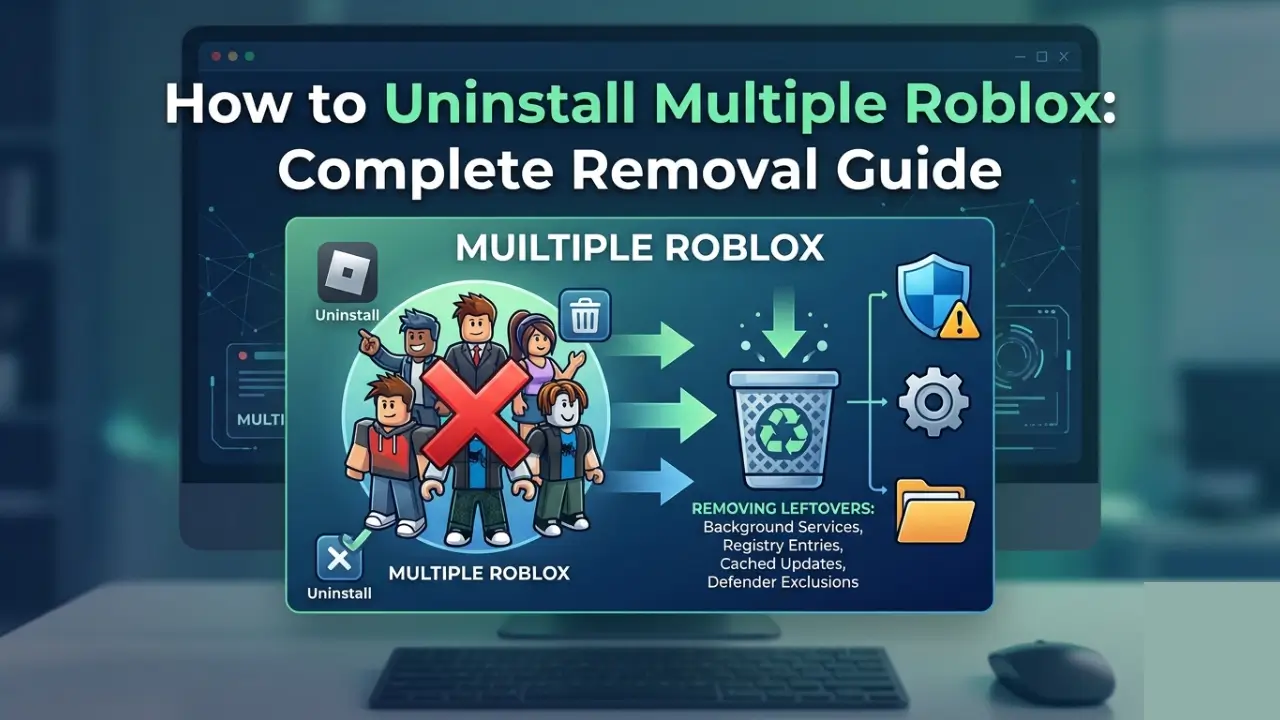
If you want to uninstall Multiple Roblox from your Windows PC, the process involves more than clicking “Uninstall” in Windows Settings. The tool leaves behind background services, registry entries, cached update files, and Windows Defender exclusions that standard uninstallers do not remove.
This guide shows you how to completely uninstall Multiple Roblox on Windows 10 and Windows 11, including manual cleanup steps for files and registry keys that remain after the standard removal process.
What Is Multiple Roblox?
Multiple Roblox is a free Windows utility that patches the mutex process lock to allow running multiple Roblox game sessions simultaneously on one PC. Each session runs independently with its own account. The tool operates at the Windows OS level without modifying Roblox game files or injecting code into the Roblox client.
When you remove Multiple Roblox, your system returns to default single-instance behavior: opening a new Roblox window closes any existing session. This is the same behavior enforced by Roblox’s native mutex (Mutual Exclusion Object) — a Windows process lock that prevents multiple instances from running concurrently.
Why Standard Uninstallation Is Not Enough
The Windows uninstaller for Multiple Roblox removes the main program files but consistently leaves behind several components:
| Component | Location | Removed by Standard Uninstaller |
|---|---|---|
| Bootstrapper executable | C:\Program Files\MultipleRoblox\ | ✅ Yes |
| System tray service | Background process | ❌ No |
| Desktop shortcut | Desktop | ✅ Yes |
| Start Menu entry | C:\ProgramData\Microsoft\Windows\Start Menu\Programs\ | ✅ Yes |
| Auto-start registry key | HKEY_CURRENT_USER\Software\Microsoft\Windows\CurrentVersion\Run | ❌ No |
| Update cache | %LOCALAPPDATA%\MultipleRoblox\ | ❌ No |
| Windows Defender exclusion | Windows Security settings | ❌ No |
To fully uninstall Multiple Roblox, follow the complete steps below.
Before You Uninstall Multiple Roblox
Closing or removing the tool does not delete Roblox accounts, game progress, or browser data. Any currently running Roblox instances stay open but lose mutex protection. New Roblox launches will close existing sessions.
Time required: 3–5 minutes
Tools needed: File Explorer, Task Manager, Registry Editor
Step 1: Close Roblox and Exit the Tool
The bootstrapper hooks into active Roblox processes. If Roblox is running, the tool’s background service blocks file deletion.
- Close all Roblox game windows.
- Open Task Manager (Ctrl + Shift + Esc) → Processes → end any
RobloxPlayerBeta.exe. - Right-click the Multiple Roblox system tray icon → Exit.
- In Task Manager → Details, confirm
MultipleRoblox.exeandMRBootstrapper.exeare not running.
Note: The bootstrapper may remain active for several minutes after clicking Exit while finishing background update checks.
Step 2: Uninstall Multiple Roblox via Windows Settings
Windows 11
- Press Win + I → Apps → Installed apps.
- Search “Multiple Roblox” → click the three dots (⋯) → Uninstall.
- Confirm. The process takes under 10 seconds.
Windows 10
- Press Win + I → Apps → Apps & features.
- Search “Multiple Roblox” → click → Uninstall.
- Confirm.
This removes the main executable, Start Menu shortcut, and desktop shortcut. It does not remove the auto-start registry key, update cache, or Defender exclusions.
Step 3: Delete Leftover Multiple Roblox Files
Program Files Folder
Check and delete:
C:\Program Files\MultipleRoblox\C:\Program Files (x86)\MultipleRoblox\
Local AppData Cache
The bootstrapper stores update files and logs that persist after uninstallation.
- Press Win + R → type
%LOCALAPPDATA%→ Enter. - Delete the
MultipleRobloxfolder.
Contents typically include:
updates/— Downloaded patch fileslogs/— Version check and error logsconfig.json— Auto-start preference and settingsbootstrapper_cache/— Temporary install files
Desktop and Start Menu Shortcuts
- Remove any “Multiple Roblox” shortcut from the Desktop.
- Check
C:\ProgramData\Microsoft\Windows\Start Menu\Programs\for remaining entries.
Step 4: Remove the Auto-Start Registry Entry
If “Start with Windows” was enabled, a registry key launches the bootstrapper on boot. The standard uninstaller does not consistently remove this.
- Press Win + R → type
regedit→ Enter → confirm UAC. - Navigate to:plain
HKEY_CURRENT_USER\Software\Microsoft\Windows\CurrentVersion\Run - Delete any entry named
MultipleRobloxorMRBootstrapper.
Alternative: Task Manager Startup Tab
- Press Ctrl + Shift + Esc → Startup apps (Windows 11) or Startup (Windows 10).
- Disable any “Multiple Roblox” entry.
Step 5: Remove Windows Defender Exclusion
If a Defender exclusion was added to prevent false positive quarantines, remove it after you uninstall Multiple Roblox.
- Open Windows Security → Virus & threat protection → Manage settings.
- Under Exclusions → Add or remove exclusions.
- Remove exclusions pointing to:
C:\Program Files\MultipleRoblox\- Downloaded bootstrapper .exe files
%LOCALAPPDATA%\MultipleRoblox\
Step 6: Restart Your PC
Restart to ensure:
- Locked files are released
- Registry changes take effect
- Background services terminate
- Windows Search index refreshes
How to Verify You Uninstalled Multiple Roblox Completely
| Check | Method | Expected Result |
|---|---|---|
| Search | Press Win → type “Multiple Roblox” | No results |
| Processes | Task Manager → Details | No MultipleRoblox.exe, MRBootstrapper.exe, or MRUpdater.exe |
| File system | File Explorer → search C:\ for “MultipleRoblox” | No results |
What Changes After You Remove Multiple Roblox
| What Changes | What Stays the Same |
|---|---|
| Only one Roblox window opens at a time | Roblox accounts and passwords remain |
| New Roblox launches close existing sessions | Game progress, inventory, and stats are safe |
| System tray icon disappears | Roblox Studio works identically |
| Tool auto-updates stop | Graphics settings and keybinds are unchanged |
| Windows Defender stops flagging the tool | Browser bookmarks and login sessions remain |
Troubleshooting: Cannot Uninstall Multiple Roblox
“The file is in use” Error
- Open Task Manager → Details → end
MultipleRoblox.exeorMRBootstrapper.exe. - Retry deletion. If still blocked, restart the PC and delete before opening other programs.
Tool Not in “Installed Apps”
The portable version (single .exe) does not register in Windows Apps. Delete the .exe from Downloads or Desktop, then follow Step 3 for manual cleanup.
Registry Key Access Denied
- Right-click the key → Permissions → Advanced.
- Change Owner to your Windows username.
- Check “Replace owner on subcontainers and objects” → Apply → OK.
- Retry deletion.
Start Menu Still Shows Multiple Roblox
This is a Windows Search index delay. Restart the PC. If persistent: Settings → Privacy & security → Search Windows → Advanced indexing options → Rebuild.
Reinstalling Multiple Roblox Later
- Settings are stored locally and deleted on uninstall. Re-enable preferences after reinstall.
- Download the latest bootstrapper from the official source. Old versions may not auto-update after Roblox client updates.
- Re-add Windows Defender exclusion if needed.
Frequently Asked Questions About Uninstalling Multiple Roblox
Will uninstalling Multiple Roblox delete my Roblox account?
No. The tool never accesses Roblox account data, passwords, or browser cookies.
Do I need to uninstall Roblox itself to remove Multiple Roblox?
No. Multiple Roblox and the Roblox client are separate. Uninstalling one does not affect the other.
Can I delete the Multiple Roblox .exe instead of doing a full uninstall?
Deleting only the .exe leaves the auto-start registry key, update cache, and Defender exclusions. A full uninstall is recommended.
Will Roblox ban me for uninstalling Multiple Roblox?
No. There is no detection or penalty for removing third-party tools.
Can I use a different multi-instance tool after I uninstall Multiple Roblox?
Yes, but uninstall Multiple Roblox completely first. Running two mutex-patching tools simultaneously causes conflicts.
Does uninstalling Multiple Roblox remove it from all Windows user accounts?
No. The bootstrapper installs per-user. Repeat the uninstall process on each account.
How do I know if Multiple Roblox is fully uninstalled?
Use the three verification checks in this guide: Windows Search, Task Manager processes, and file system search.
Conclusion
To uninstall Multiple Roblox completely, the standard Windows uninstaller is only the first step. Background services, registry entries, cached update files, and Windows Defender exclusions remain on your system unless you remove them manually.
Follow the six steps in this guide — close all processes, run the standard uninstaller, delete leftover files in Program Files and AppData, clean the registry auto-start key, remove Defender exclusions, and restart your PC. Use the verification checks at the end to confirm nothing remains.
If you plan to reinstall later, download the latest bootstrapper from the official source. Old versions may fail to auto-update after Roblox client updates, and leftover registry keys from an incomplete uninstall can cause conflicts with fresh installs.
Uninstalling Multiple Roblox does not affect your Roblox accounts, game progress, or settings. Your system simply returns to single-instance behavior. The entire removal process takes under five minutes when done correctly.